

Your shopping list, right on your Home Screen
Want to see your shopping list without opening the app? Add a Dete widget to your iPhone Home Screen. It shows what's left to get and your total, right next to your other apps.
It takes four steps, and you only do it once. We make Dete by Discount Trolley, and the steps below match the screens on an iPhone running iOS 18.
Before you start
On an older version? Update Dete first. Search Dete on the App Store.
Add a few things to your list in Dete before you add the widget, so it has something to show.
How to add a Dete widget, step by step
Here is the whole job, one screen at a time.
- Touch and hold an empty spot on your Home Screen. Tap Edit, then Add Widget.
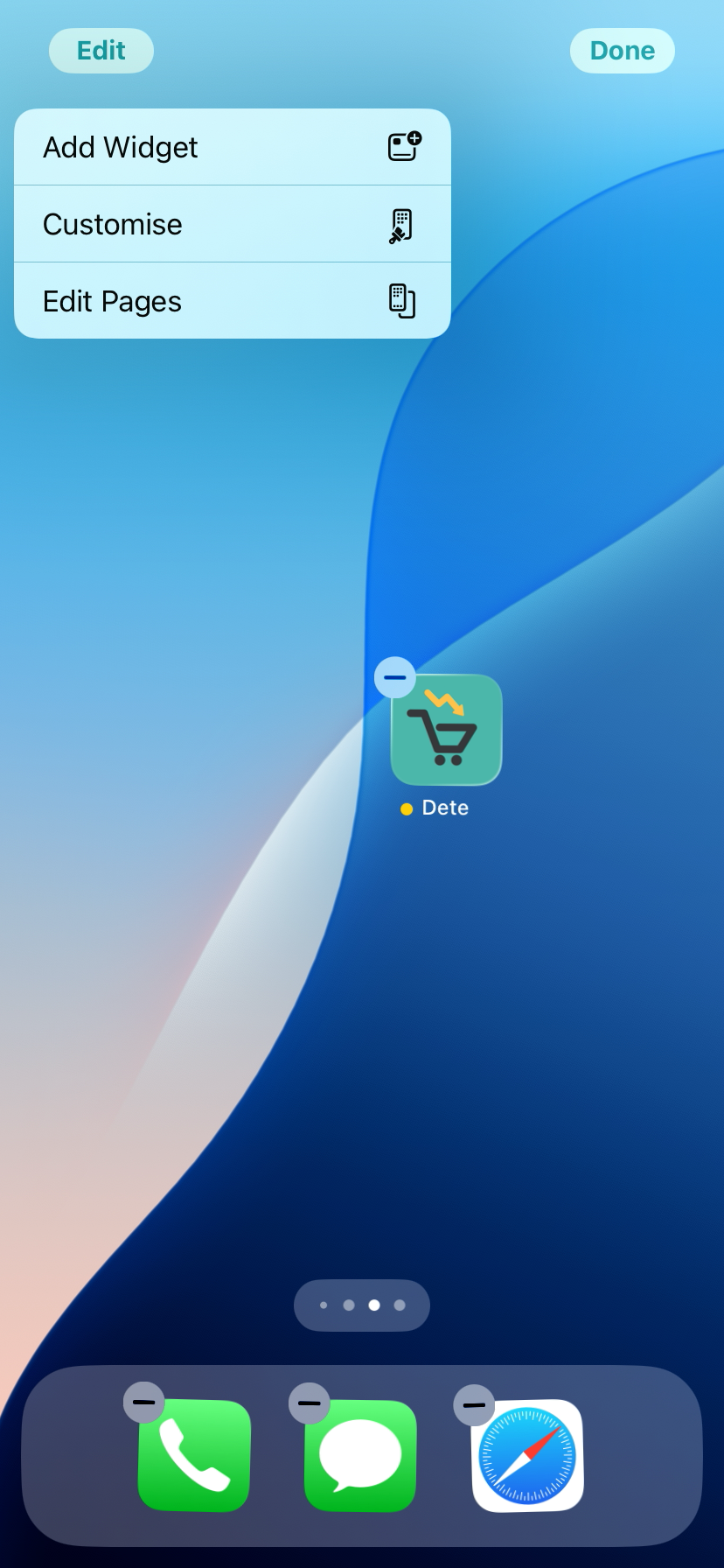
Step 1: touch and hold an empty spot, tap Edit, then tap Add Widget. - Type Dete in Search Widgets, then tap Dete.
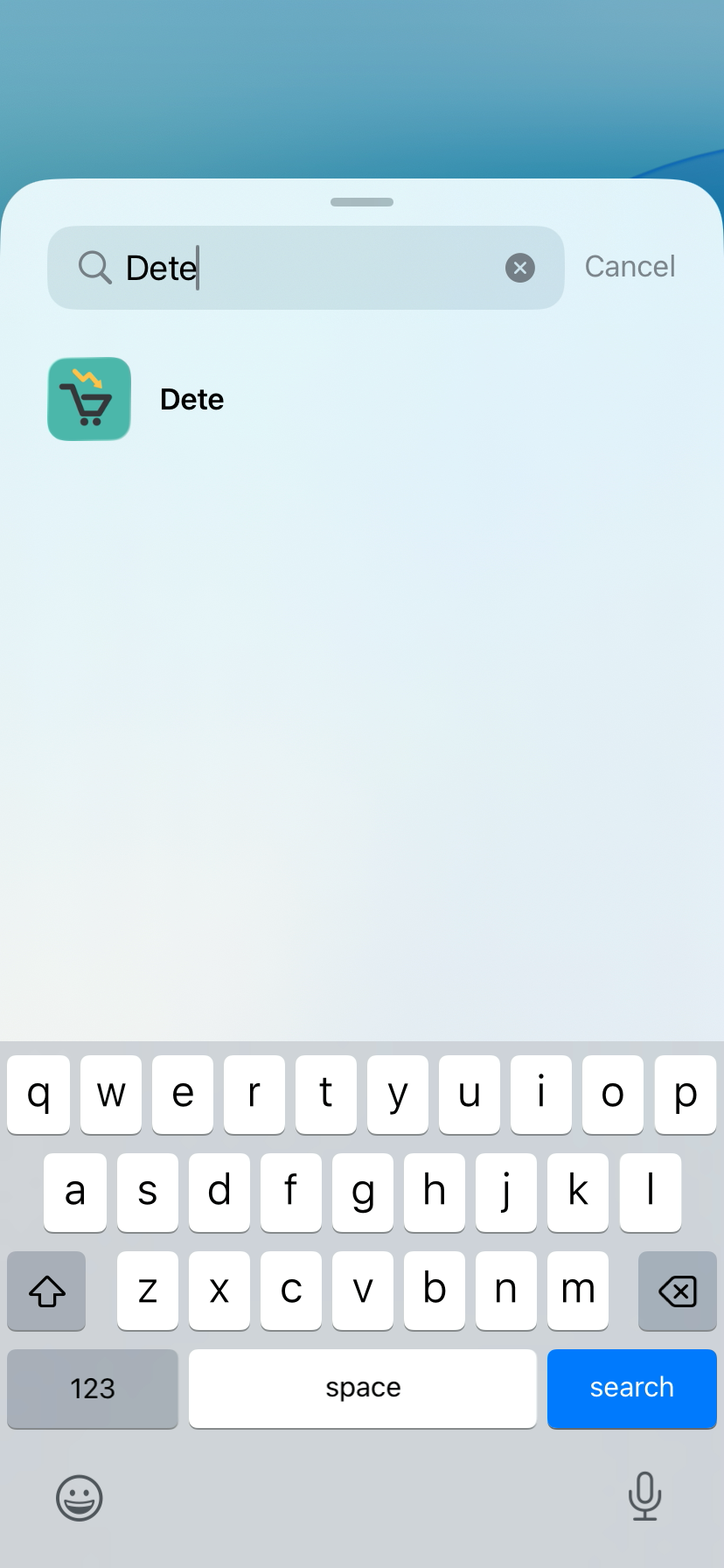
Step 2: type Dete in Search Widgets, then tap Dete. - Swipe to pick a widget and size. Tap Add Widget.
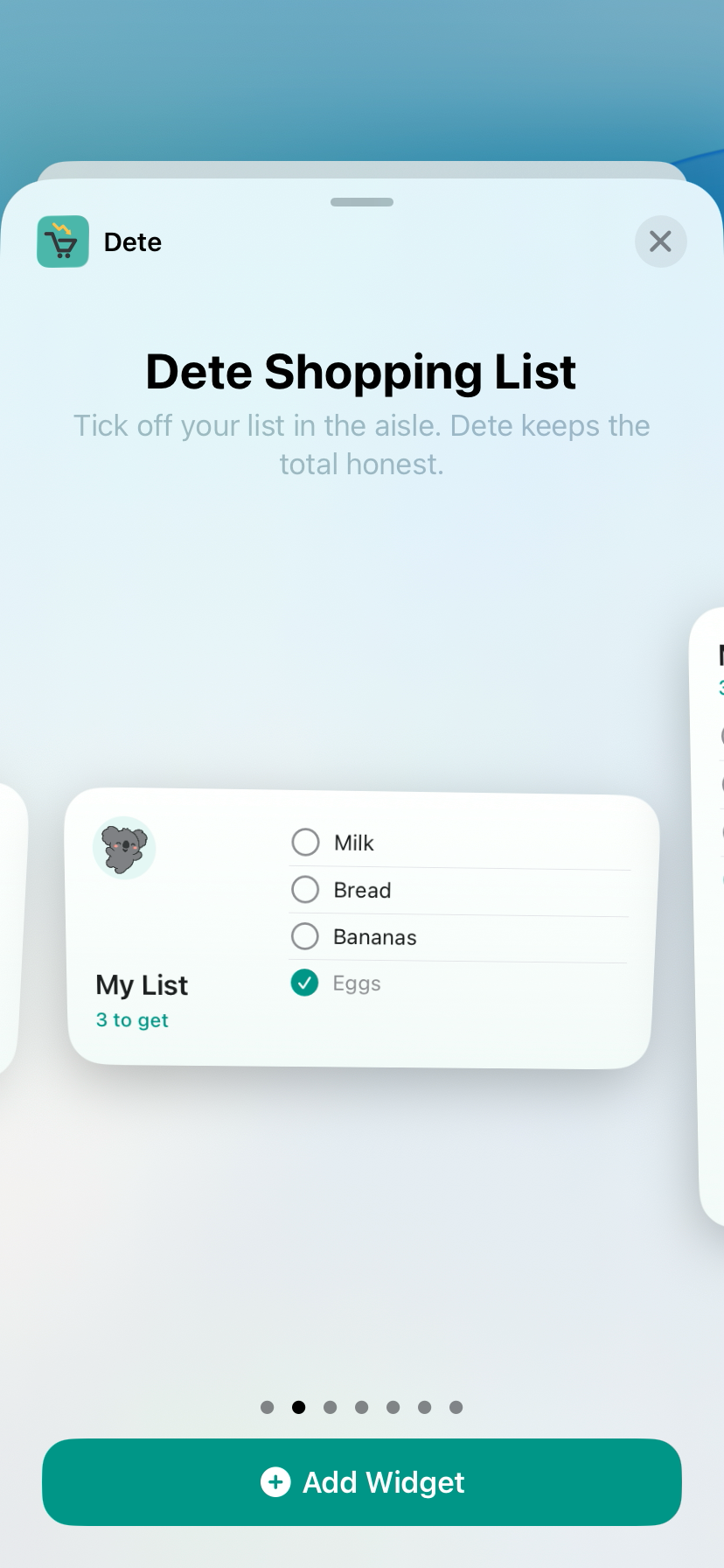
Step 3: swipe to the widget and size you want, then tap Add Widget. This preview shows sample items, not your list. - Tap Done. That's it, your list now lives on your Home Screen.
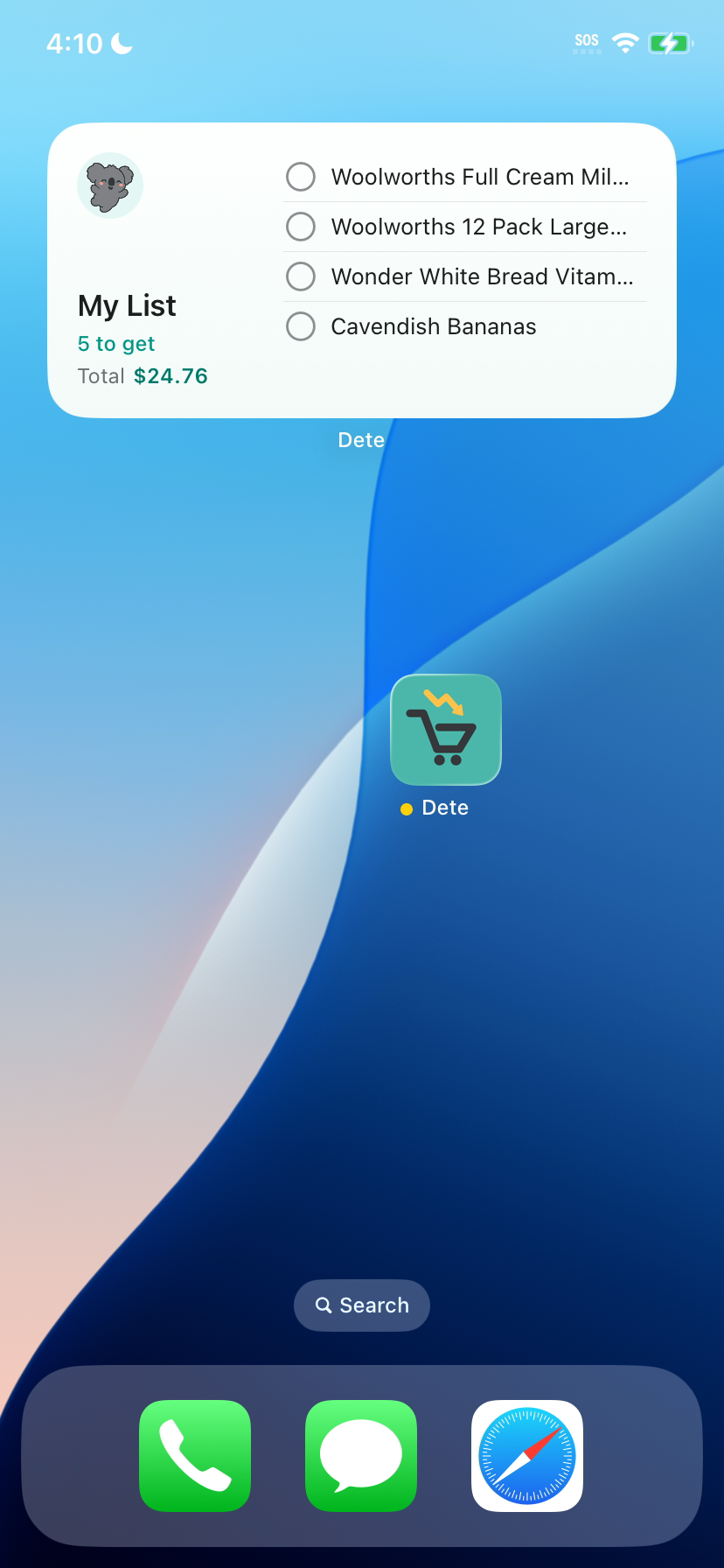
The Dete Shopping List widget, medium size, on an iPhone Home Screen: My List, 5 to get, Total $24.76. That total was a five-item Woolworths Barangaroo Metro list on 5 November 2026. Prices change, so yours will differ.
What the Dete Shopping List widget shows
The Dete Shopping List widget shows your list name, how many items are left to get, the list total and your items.
It comes in small, medium and large. The medium size shows four items at a time, so a list with five items reads 5 to get with four rows showing.
In our screenshot the total was $24.76. That was a five-item Woolworths Barangaroo Metro list on 5 November 2026, so treat it as an example, not today's price.
More Dete widgets to try
The Shopping List is not the only one. Also try Dete Price Drops, Dete Cheapest Store and Your Dete. Add them the same way: search Dete in Search Widgets, then swipe through the Dete widgets until you find the one you want.
Dete Cheapest Store fits your Lock Screen too, so you can see it without unlocking your phone.
- Dete Shopping List
- Dete Price Drops
- Dete Cheapest Store
- Your Dete
Quick tips
- Can't find Dete in Search Widgets? Update Dete first. Search Dete on the App Store.
- Widget looks empty? Open Dete and add items to your list. Your list shows up on the widget once it's there.
- Want it somewhere else? Touch and hold the widget to move it or remove it, like any other widget.
- Prices change. The shelf can differ from the screen, and live prices need a connection.
More Dete guides
Find every step-by-step guide on the Dete guides page.
Get Dete
Free to try on the App Store. Search Dete, or tap the button below.
Questions shoppers still ask
How do I add a Dete widget to my iPhone Home Screen?
Touch and hold an empty spot on your Home Screen. Tap Edit, then Add Widget. Type Dete in Search Widgets and tap Dete. Swipe to pick a widget and size, tap Add Widget, then tap Done.
Which Dete widgets can I add?
You can add Dete Shopping List, Dete Price Drops, Dete Cheapest Store and Your Dete. Dete Shopping List comes in small, medium and large.
Can I put a Dete widget on my Lock Screen?
Yes. Dete Cheapest Store fits your Lock Screen too, as well as your Home Screen.
What does the Dete Shopping List widget show?
It shows your list name, how many items are left to get, your total and your items. The medium size shows four items at a time.
Why can't I find Dete in Search Widgets?
You may be on an older version. Update Dete first. Search Dete on the App Store.
Why is my Dete widget empty?
The widget shows the list you build in Dete. Open Dete and add items to your list, and they show up on the widget.
Are the prices on the widget up to date?
Prices change, and the shelf can differ from the screen. Live prices need a connection. The $24.76 total in our screenshot was a Woolworths Barangaroo Metro list on 5 November 2026, so it is an example only.
Woolworths, Coles, ALDI, IGA, Harris Farm, Priceline and Chemist Warehouse where data is available. Not affiliated with those stores. The shelf can differ from the screen. Live prices need a connection.

Put your shopping list on your Home Screen with Dete.
Build your list in Dete by Discount Trolley, then add the widget and see what's left to get and your total at a glance. Free to try on the App Store.
- Your list and total on your Home Screen
- Dete Cheapest Store on your Lock Screen
- Search Dete on the App Store