

Three ways to bring a list in
You can paste or type a list, take a photo or screenshot, or scan a paper list. The steps below start with a pasted list.
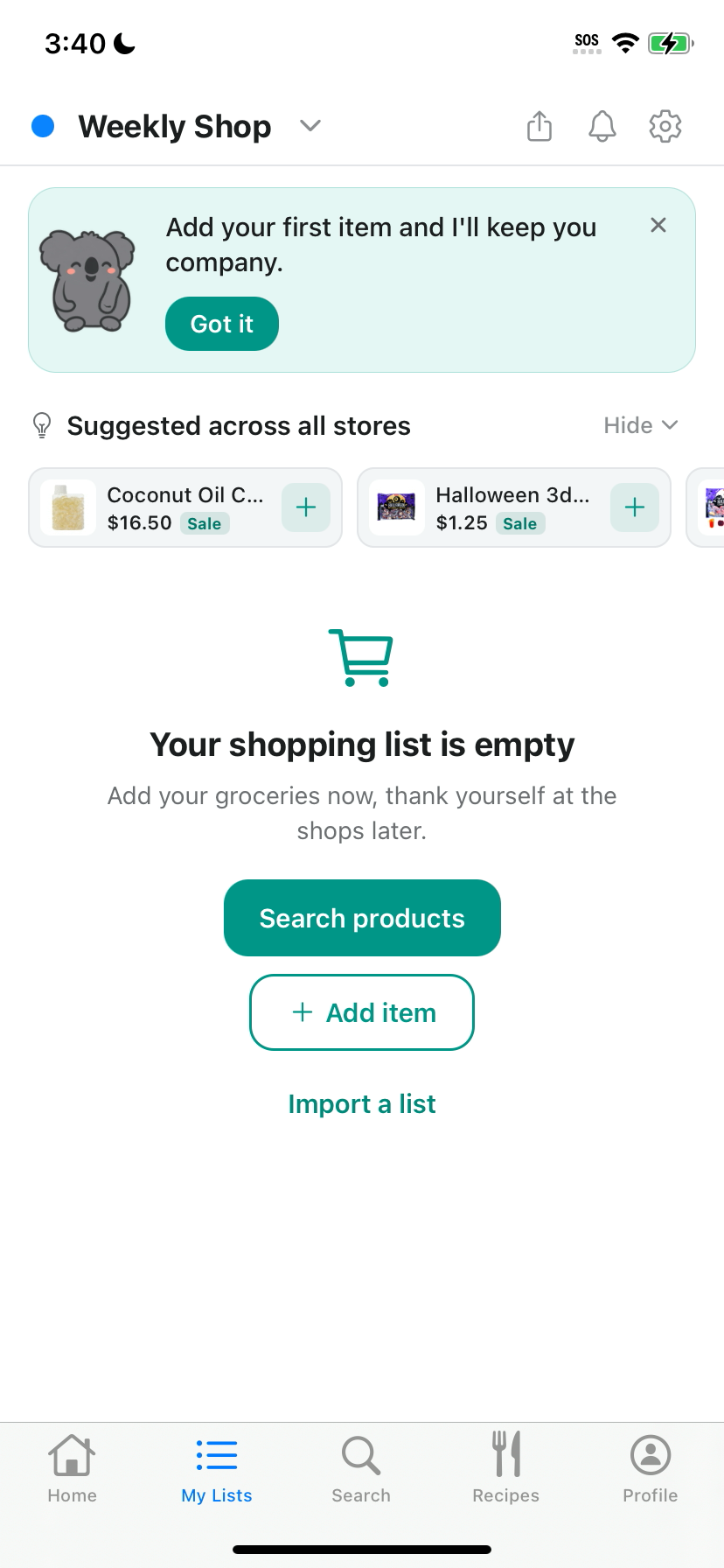
Step 1. Open My Lists and tap Import a list
Open My Lists and tap Import a list. On an empty list, the link sits under Search products and Add item.
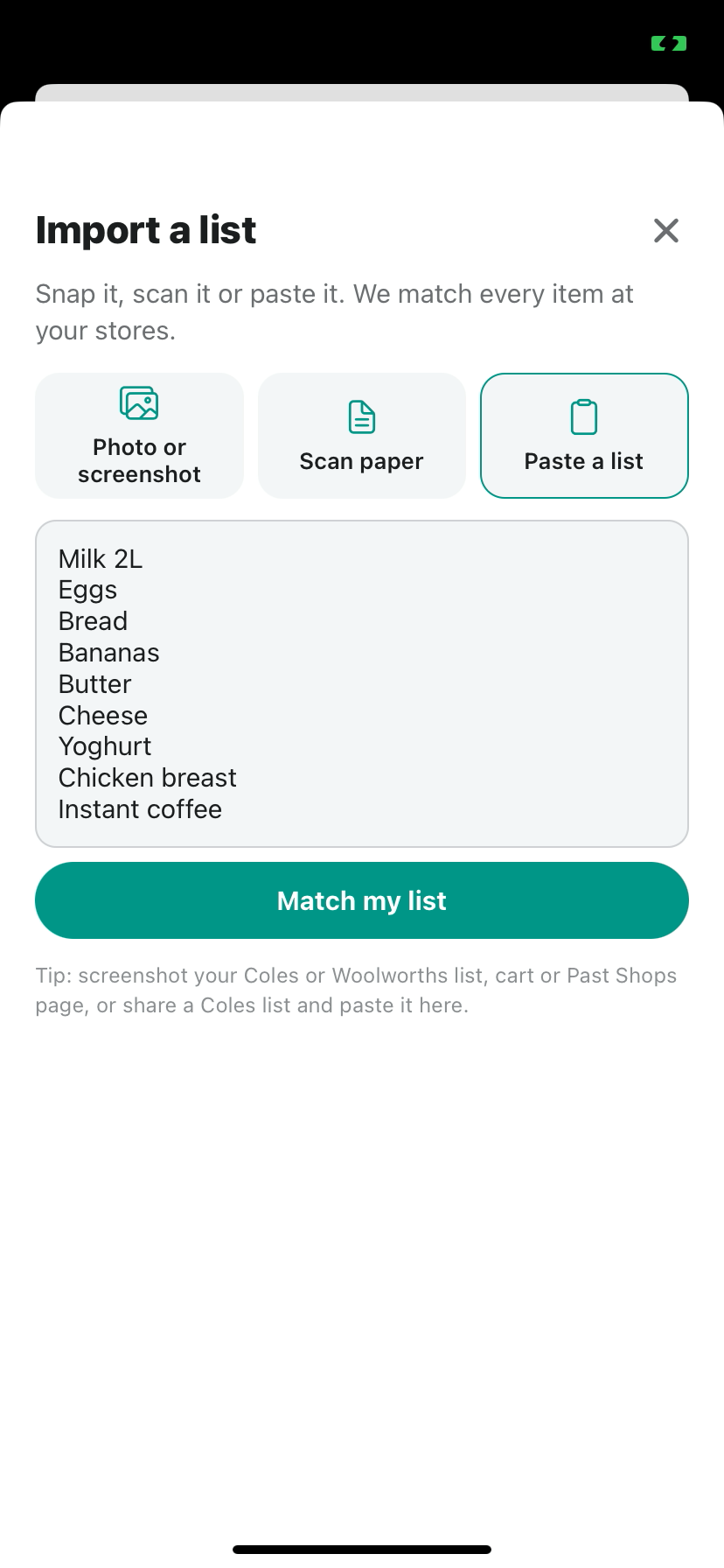
Step 2. Pick how you want to bring the list in
Pick Photo or screenshot, Scan paper or Paste a list. Then tap Match my list.
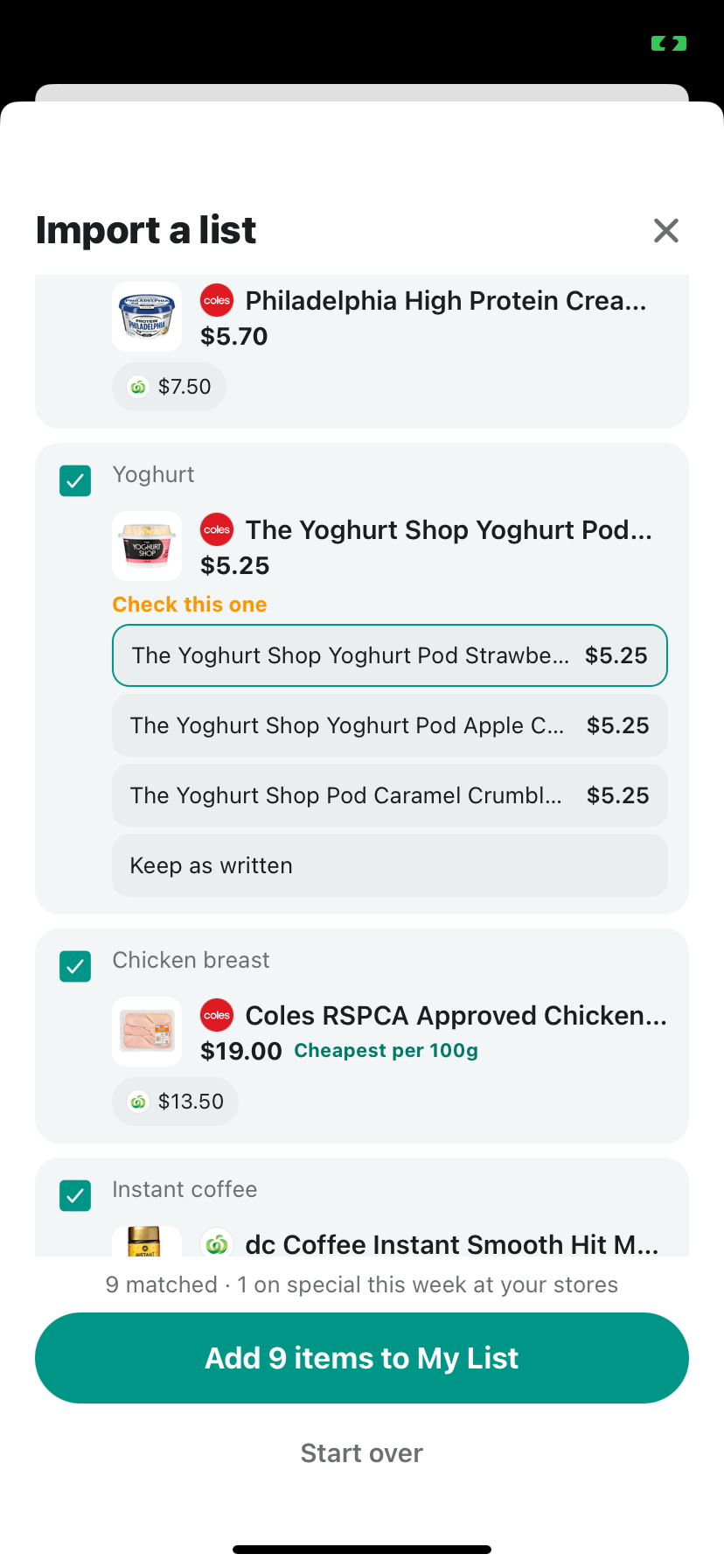
Step 3. Check the lines it isn't sure about
Not sure about a line? It says Check this one. Tap the right product or Keep as written.
Check the matches before you add them. It will not match every line, and it will not fix a typo for you.
If a line is not a product, it stays as written. On this screen, Tuna is Kept as written and unticked. Tick it to add the words as they are, or leave it off.
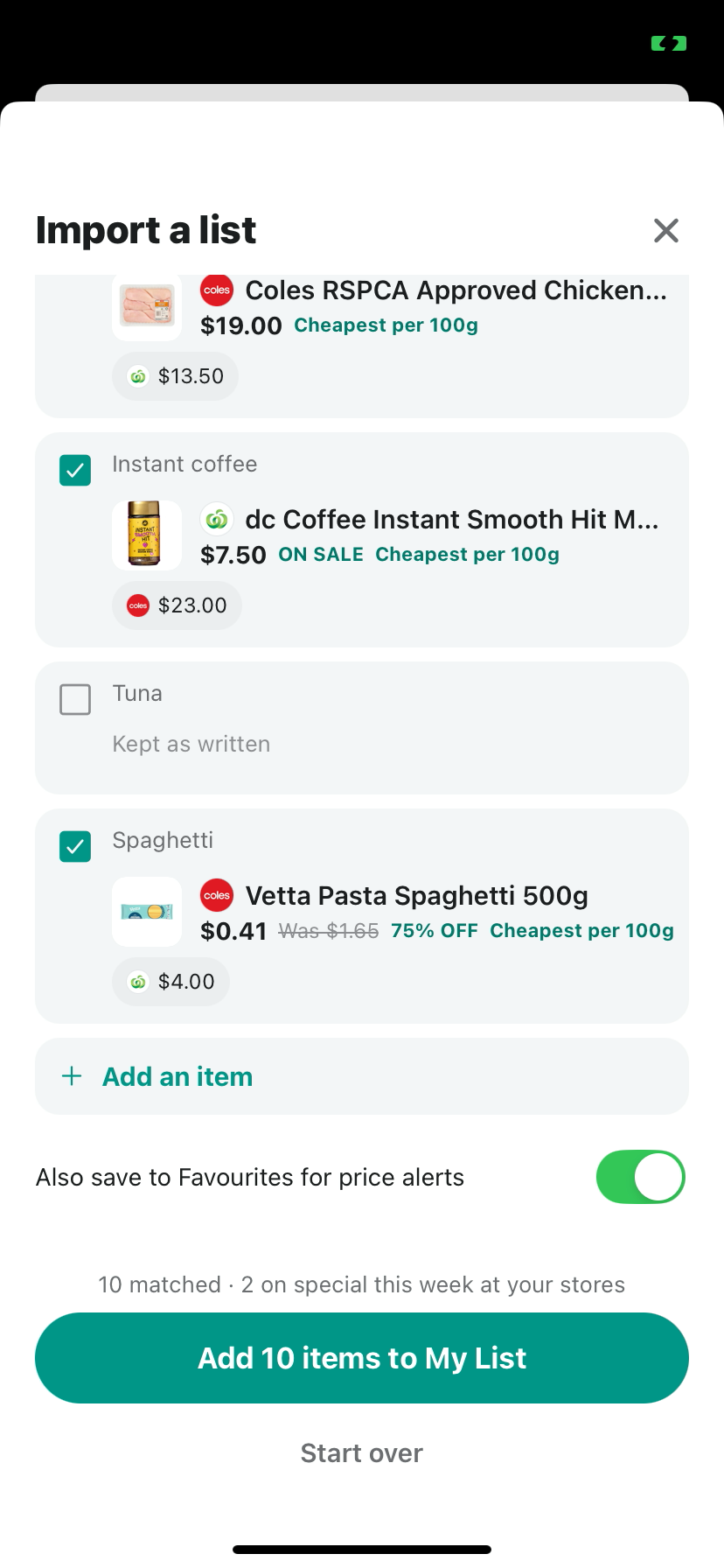
Step 4. Add anything you missed, then add the items to My List
Need one more thing? Tap Add an item. All good? Tap the button to add the items to My List. In this example the button reads Add 10 items to My List.
You can turn off Also save to Favourites for price alerts if you do not want those items saved as favourites.
Step 5. Your list fills in
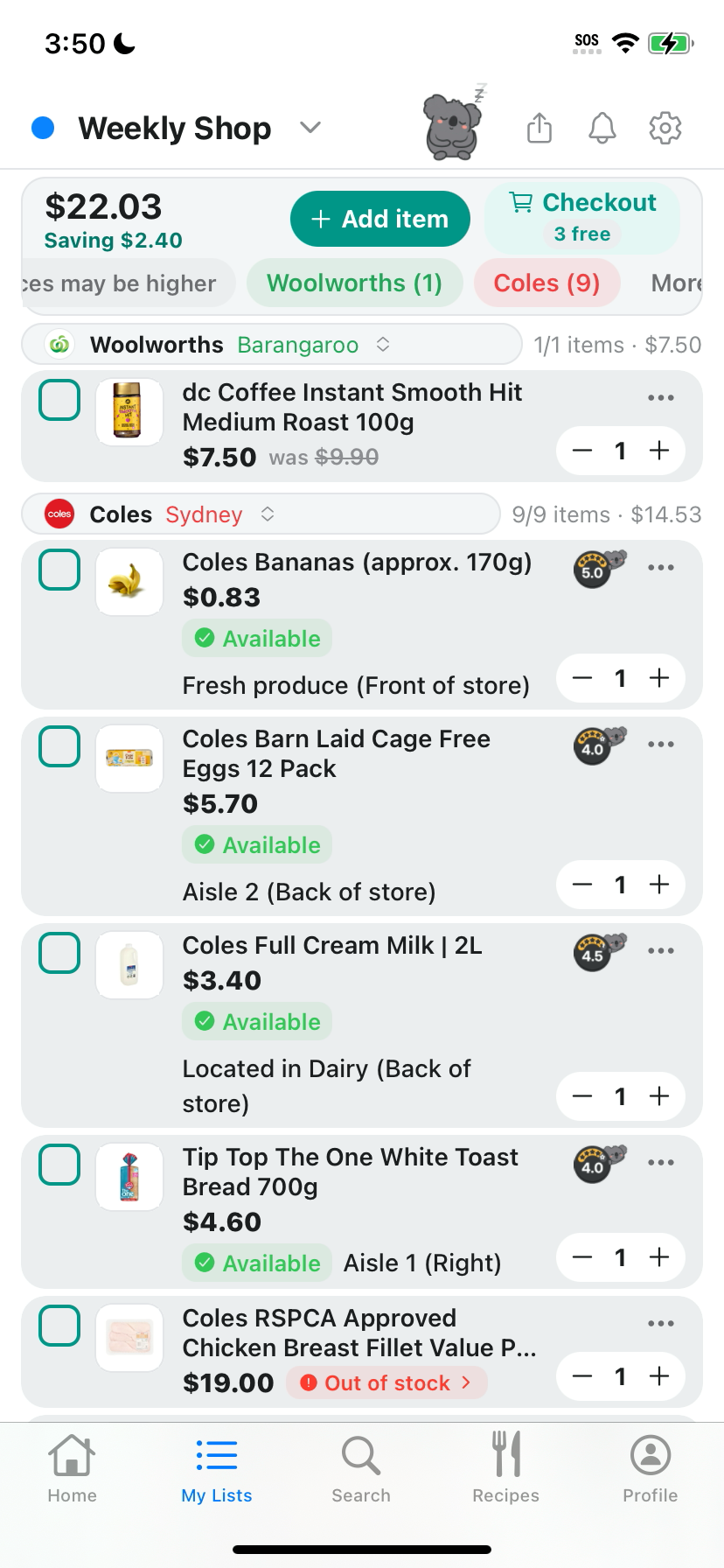
Done. Your list fills in with prices, stock and the aisle.
On the screen from 19 November 2026, Coles Barn Laid Cage Free Eggs 12 Pack shows $5.70, Available, and Aisle 2 (Back of store). The Coles chicken breast row shows Out of stock.
Already have items in a list? Import a list is in list settings too.
What to keep in mind
Check lines it isn't sure about before you add them.
If a banner says it couldn't match your list just now, try again.
Update to the latest Dete first.
The steps and screens are from the iPhone app on 19 November 2026. Dete is also on Google Play. Search Dete on the App Store or Google Play.
Prices in the screenshots are from the app on 19 November 2026. Prices move, and the shelf can differ from the screen.
More Dete guides
See all our Dete guides for every step-by-step walkthrough. Once your list is in, see how to send your shopping list to the store's online trolley. New to the app? Start with how to use Discount Trolley before your weekly shop.
- How to send your shopping list to the store's online trolley
- How to use Discount Trolley before your weekly shop
- How to read Dete's when-to-buy signs
- How to set your shopping goal in Dete
Get Dete
Dete by Discount Trolley is on the App Store and Google Play. Search Dete, bring your list in, check the matches, and add them to My List with prices, stock and the aisle.
Questions shoppers still ask
How do I import a shopping list into Dete?
Open My Lists and tap Import a list. Pick Photo or screenshot, Scan paper or Paste a list, then tap Match my list. Check any line it isn't sure about, then add the items to My List.
What if Dete does not match an item?
The line stays as written. You can pick a product, tap Keep as written, or leave an unmatched line unticked so it is not added. Check the matches before you add them. Dete does not fix typos for you.
What if it says it couldn't match my list just now?
Try again. The match can fail now and then. It is not a sign that your list is wrong.
Can I import into a list that already has items?
Yes. Import a list is in list settings too.
Which stores does Dete show prices from?
Woolworths, Coles, ALDI, IGA, Harris Farm, Priceline and Chemist Warehouse where data is available. Dete is not affiliated with those stores. The shelf can differ from the screen. Live prices need a connection.
Woolworths, Coles, ALDI, IGA, Harris Farm, Priceline and Chemist Warehouse where data is available. Not affiliated with those stores. The shelf can differ from the screen. Live prices need a connection.

Import your shopping list into Dete.
Got a list in your notes or on paper? Paste it, snap it or scan it into Dete, check the matches, and add them to My List.
- Paste, snap or scan a list
- Check the matches, then add them to My List
- Get Dete on the App Store or Google Play